
A theme update can bring useful fixes and new merchandising options, but a customized Shopify store is more than the original theme package. It may include edited Liquid files, custom sections, app embeds, special product templates, and CSS that depends on a particular markup structure.
The safest way to update a Shopify theme without losing customization is to make those dependencies visible before publishing. This guide covers the inventory, draft review, code decisions, functional checks, and handover needed for a controlled release. It also explains why a backup theme is useful but cannot reverse every kind of store change.
Understand what the update process does
Shopify's current theme update documentation says supported updates copy theme-editor customizations and may include code changes when they do not conflict. The update result indicates whether code edits were carried over.
That capability is helpful, but successful merging is not the same as complete functional validation. A custom selector may still target changed markup, an app may expect an older structure, or a newly available setting may alter a component's behaviour.
Confirm the theme's source and update path. Themes purchased outside the Shopify Theme Store, uploaded copies, and older unsupported themes can require different processes. Review the designer's release notes and support guidance before choosing between an incremental update and a fresh implementation.
Decide why this release is needed
List the relevant fixes and features from the release notes. Connect each to a current problem or a useful capability. “A newer version exists” is not a complete business case for urgent publishing during a campaign.
Identify time-sensitive fixes, known compatibility concerns, and opportunities that can wait. If the current theme has structural limitations, a major update may need a larger project than a routine maintenance window.
Agree on scope with the store owner. A maintenance update should not silently become a redesign with changed navigation, photography, and product messaging. If visual changes are intentional, document them as acceptance criteria so reviewers can distinguish expected differences from regressions.
Create a customization inventory
Inspect the live theme and ask previous implementers for change notes. Record custom sections, edited snippets, template variants, additional scripts, custom CSS, translation changes, and app integrations. Include the reason each customization exists.
Capture representative URLs and screenshots. A custom product template may only appear on a small category of products and be easy to miss during a homepage review. Note the associated product or collection assignments.
Use a simple register with feature, location, owner, implementation method, and test scenario. “Engraving field on personalized products” is more useful than “custom JavaScript.” The register should allow a reviewer to confirm customer behaviour even if they did not write the original implementation.
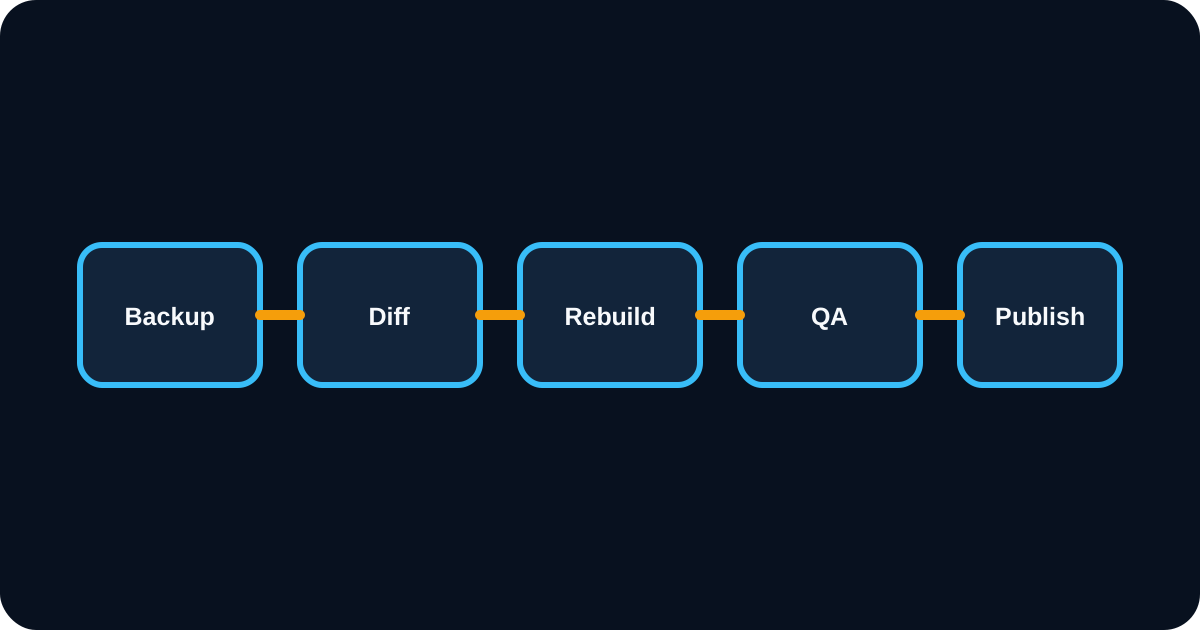
Preserve the current state
Duplicate and clearly label the live theme before editing. Shopify recommends creating a backup before theme customization in its customizing themes guide. Record the date and the reason the copy exists.
For substantial code work, retain a version-controlled copy and an export appropriate to the team's process. Save app settings and important editor configurations separately where the app supports it. Screenshots can supplement documentation, but they do not replace a usable code or configuration backup.
Remember the boundary: a theme copy does not back up every store setting. Products, shipping rules, checkout configuration, app accounts, and external systems may change independently. List any planned store-level changes and their own reversal methods before the release begins.
Prepare the updated draft
Add the supported update to draft themes, then read the result shown by Shopify. Record whether custom code was included. Open the draft editor and inspect key templates before making further adjustments.
Shopify's adding and switching themes guidance explains that products, collections, pages, and other admin-managed content remain separate from the theme. Their presence in the store does not guarantee that every new template displays them correctly.
Review editor settings systematically: colours, typography, logo, navigation, sections, templates, dynamic data sources, and market-specific presentation. Where a new version changes available settings, document the chosen replacement. Avoid trying to recreate a removed control through custom code until you understand the new supported behaviour.
Review custom code by purpose
Compare the original vendor version, the customized live version, and the updated vendor version where those sources are available. This helps separate your changes from upstream changes. A simple copy of every old file can discard the improvements you intended to install.
For each customization, choose to retain, adapt, replace with a native feature, or retire with business approval. Preserve its purpose rather than automatically preserving its exact implementation. A new native section may serve the requirement more maintainably.
Pay special attention to snippets shared by several templates. A change that looks local can affect product cards, search results, recommendations, and quick-add controls. Document those relationships in the test plan so code review and functional review cover the same risk.
Check CSS against the new markup
Custom CSS often survives as text while losing its intended effect. Class names, nesting, spacing variables, and component structure may have changed. Inspect the element and verify that the selector still matches the correct content.
Look for overly broad rules that accidentally style new components. A rule aimed at all buttons or headings can create inconsistent states after an update adds fresh markup. Prefer carefully scoped changes that are understandable to the next maintainer.
Test responsive breakpoints and text wrapping. A header that fits on desktop may collide with the cart icon on mobile. Include long product names, translated labels, sale prices, and validation messages because ordinary short content often hides layout problems.
Reconnect app functionality deliberately
Review app blocks and embeds in the updated draft. Shopify describes their configuration in extending themes with apps. Verify the app developer's compatibility guidance when a feature behaves differently.
Test reviews, subscriptions, personalization, loyalty, search, bundles, and any cart-related integration used by the store. Check both visible placement and the data passed into the order. A personalization field that looks correct but fails to save its value is a serious regression.
Avoid fixing missing widgets by immediately pasting old script snippets into the new theme. The supported integration may use an app block or embed instead. Duplicating installation methods can create repeated scripts, double tracking, or conflicting interface behaviour.
Build a meaningful regression matrix
Choose tests based on customer and staff tasks. Include browsing a collection, searching, selecting variants, viewing availability, adding products, editing a cart, applying a promotion, and reaching checkout.
Cover important product types rather than testing the same simple product repeatedly. Subscription items, bundles, gift cards, personalized goods, and products with special availability rules often reveal different dependencies.
Record the expected result and the tested draft version. Attach screenshots or short observations for failures. A checklist marked complete without identifying the pages or conditions provides little value when a problem appears later. Keep unresolved issues visible until the owner accepts or fixes them.
Review accessibility and performance
Use keyboard navigation to inspect menus, dialogs, variant controls, and cart interactions. Check visible focus, readable error messages, and whether overlays can be closed without a pointer. A visual comparison alone cannot confirm these behaviours.
Compare important mobile pages under similar testing conditions. A new version may improve one component while additional campaign content makes the overall page heavier. Use our mobile speed optimization guide to distinguish loading, responsiveness, and layout stability.
Inspect image dimensions, font behaviour, and late-loading modules. Confirm that content does not jump into the path of a tap. Record performance observations alongside functional acceptance so the release does not trade a working purchase flow for a superficial score improvement.
Check search and measurement foundations
Review titles, descriptions, headings, canonical output, and structured data on representative templates. Theme updates can alter output even when the corresponding product fields remain unchanged. Watch for duplication from theme and app implementations.
Validate key analytics events through the store's approved testing process. Do not add a second tracker merely because an event is hard to observe. Confirm ownership, consent behaviour, and the expected integration before making changes.
Search visibility also depends on internal links and accessible content. Verify navigation, collection descriptions, product links, and article templates. If a redesign removes a useful section, consider the content and customer consequences explicitly rather than treating the difference as cosmetic.
Publish with a clear rollback boundary
Choose a release window when the team can observe the store and respond. Record the prior live theme and the new draft name. Pause unrelated theme edits so the accepted draft does not change unexpectedly before publication.
After publishing, repeat the critical purchasing checks on the public store. Confirm the theme actually served to ordinary visitors, including mobile and returning sessions. Monitor support reports and important operational events.
If a critical theme regression appears, republishing the retained previous theme may be the quickest recovery. But it will not undo separate app, product, or checkout changes. The runbook should identify those boundaries so rollback decisions are based on the actual cause.
Arrange a merchant review before publication
Give the person who manages products a short set of ordinary editing tasks in the updated draft. Ask them to change a campaign image, reorder a section, update a product information block, and inspect an alternative template. This checks whether the store remains manageable after the developer leaves.
Use representative content, including long headings and products with incomplete optional fields. A template that works only with perfectly prepared demonstration content can create ongoing publishing problems. Confirm which settings editors may change safely and which custom features require developer support.
Record the merchant's acceptance separately from technical testing. The developer may confirm that a section renders correctly, while the merchandising team discovers that its controls do not support the intended weekly workflow. Resolve that difference in the draft, update the handover notes, and preserve the agreed configuration before scheduling publication. This makes the release useful operationally as well as visually.
Frequently asked questions
Does Shopify copy customizations when a theme is updated?
Supported theme updates copy theme-editor customizations, and compatible code edits may also be included. Review the update result and test the draft because conflicts and app compatibility can still require manual work.
Will switching themes delete my products?
Products and other admin-managed content are separate from the theme. Switching themes changes presentation, but template assignments, app features, and settings still need careful verification.
Can I return to the previous theme after publishing?
You can republish a retained previous theme, but that does not reverse separate changes to products, apps, checkout settings, or other store-level configuration.
Make the next update easier
Finish the release by updating the customization register, removing obsolete notes, and recording the accepted theme version. Keep custom features documented by purpose and prefer supported editor and app-extension patterns when they meet the requirement.
AreoTech's Shopify development service can review custom code and prepare controlled updates. Our store maintenance guide explains how to make that work recurring. Discuss your theme update with the theme name, current version, known custom features, and campaign schedule so the scope reflects the store's actual dependencies.