
When Shopify shows paid orders but GA4 reports fewer purchases, it is tempting to reinstall tracking immediately. That can leave the original issue unresolved while creating a second event stream. A useful Shopify GA4 missing purchases investigation starts by identifying which orders are absent, then follows the event path for a controlled purchase.
Your order system and analytics platform answer different questions. Shopify records commercial transactions; GA4 observes and processes measurable customer activity. You need dependable measurement for marketing decisions, but identical totals are not a sensible requirement until order scope, time zones, consent, and revenue definitions have been aligned.
This guide provides a diagnostic sequence for merchants and implementation teams. Keep a small evidence log as you work: order identifier, checkout method, device, consent choice, expected event, observed destination, and the first stage where the evidence stops.
Confirm that the comparison uses the same orders
Begin with a completed date range rather than today's changing totals. Use the same reporting time zone and compare eligible online storefront orders. Exclude point-of-sale orders, draft orders, manual invoices, and other transactions that did not pass through the web journey your GA4 implementation measures.
Decide whether the question concerns purchase count, gross revenue, net revenue, or attributed sales. Taxes, shipping, duties, discounts, cancellations, and refunds can change the comparison. A revenue mismatch with correct transaction counts suggests a different problem from a missing purchase event.
Google explains that reports have different processing intervals in its GA4 data freshness guidance. Allow the relevant reporting window to settle before concluding that a transaction has disappeared. Realtime visibility and a finalized commerce report are different checks.
Build a small order-level reconciliation sheet
Select a manageable sample containing both matched and missing transactions. Include ordinary checkout, accelerated checkout, mobile devices, returning customers, and different markets. Record identifiers rather than customer names or email addresses; the investigation rarely needs personal information.
For each order, note whether GA4 contains a matching transaction ID and purchase value. Look for patterns: all missing orders may share a payment method, start after a deployment, come from one market, or use the same custom checkout path. Those patterns are more informative than a storewide percentage.
If no order-level export is available, start with a controlled test and narrow time windows. Be explicit about that limitation in your findings. “The totals differ” is an observation; “the purchase tag fails after this checkout path” is a testable diagnosis.
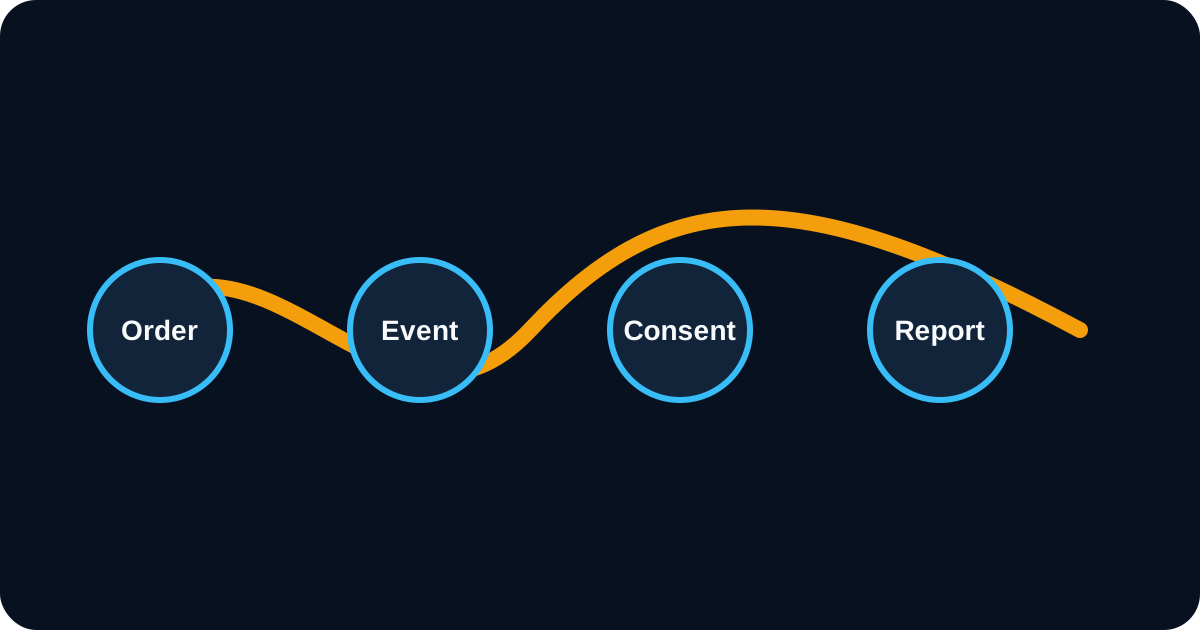
Identify the integration that owns purchase tracking
List the Google & YouTube connection, app pixels, custom pixels, Google Tag Manager containers, theme scripts, and any server-side tracking service. Note which GA4 property and web stream each sender targets. A technically correct event sent to the wrong measurement ID is still missing from the report you are viewing.
Use Shopify's current GA4 setup documentation to verify the supported connection path. Check the actual account configuration rather than relying on a screenshot from an old installation guide.
Assign one implementation owner for the purchase event. Multiple components may be necessary in a deliberate architecture, but they need shared identifiers and clear responsibilities. Preserve a configuration snapshot before changing anything so the team can explain what was active during each test.
Check whether the purchase event is emitted
Place an authorized test order using the same customer journey as the missing transactions. Inspect the available browser diagnostics and the receiving integration's test tools. Record the event name, destination, transaction identifier, value, and currency without exposing personal customer data.
Follow the journey from product page to checkout completion. If earlier events appear but purchase does not, the issue may be specific to the completed-checkout subscription, integration permissions, or a custom implementation. If no events appear, investigate the basic connection and consent state first.
A browser extension cannot prove what a server integration sent. Likewise, a network request leaving the browser does not prove the final report accepted it. Match each observation to the layer it actually tests, then continue to the next layer instead of treating one green indicator as conclusive.
Inspect transaction IDs before rebuilding tags
Every real order needs a stable, nonempty transaction identifier. It should stay the same when the same order is observed again and differ for separate orders. Do not use a static placeholder, a customer ID, or a random value generated on every page view.
Google's transaction ID guidance explains that GA4 deduplicates web purchases using transaction IDs and warns against empty values. A reused ID can therefore create an undercount even when requests are being sent successfully.
Inspect several actual payloads, including consecutive orders. A preview may show a plausible value while a production variable resolves incorrectly. Also verify that a thank-you-page revisit retains the original order identity rather than generating a new purchase. Fixing transaction identity often improves both missing and duplicate reporting problems.
Test consent as an explicit part of the journey
Run separate tests for the consent states your store supports. Record the region, banner choice, and whether that state reaches the relevant integration. A customer declining analytics can legitimately change what is collected. That is different from a broken banner that never communicates an accepted choice.
Do not work around a refusal by moving the same collection to another channel. The implementation should honour the store's privacy choices consistently. If you change a consent tool, confirm that existing app pixels and custom pixels receive the intended signals after the migration.
For stores serving Canada and other markets, document the configuration by market rather than assuming one browser test covers every visitor. Coordinate legal requirements with the business's advisers where necessary; the technical task is to implement the approved policy accurately and make its effect on measurement visible.
Review custom pixels and sandbox assumptions
Shopify manages app and custom pixels through Customer events. Its pixels overview recommends an integrated app pixel where one meets the requirement. A custom solution needs explicit ownership because the merchant's developer is responsible for its behaviour and maintenance.
Older snippets may assume direct access to page variables or checkout markup that a current pixel environment does not expose. Do not fix such a snippet by guessing selectors. Confirm the available event payload and the supported integration approach for the store's current setup.
When Google Tag Manager is involved, check both the container configuration and the events passed into it. A trigger can be correct while its expected data never arrives. Shopify's GTM custom pixel tutorial describes important differences in this environment, including manually configured events that ordinary website installations may infer.
Separate collection problems from reporting problems
If the event reaches the correct property with the correct payload, inspect report filters, comparisons, transaction dimensions, and date settings. A report limited to a channel or audience can exclude a valid purchase even though the event exists elsewhere in the property.
Attribution is another separate question. A purchase that appears under an unexpected channel is not necessarily missing. Trace session and campaign information before changing the purchase event. Similarly, marking an event as a key event does not repair malformed commerce data.
Document whether the failure is collection, transport, processing, presentation, or attribution. This classification gives the next person a useful starting point and prevents repeated installation work. It also makes it easier to distinguish an implementation regression from an ordinary change in the proportion of measurable visitors.
Avoid introducing duplicate conversions during repair
Before enabling a replacement sender, decide when the previous sender will stop. Test the new configuration in an appropriate isolated setup, then make a coordinated release. Leaving both active “just in case” can inflate purchases or produce conflicting values for the same order.
A server-side integration needs the same care. It does not automatically recover every missing browser purchase, and it must preserve event identity, consent handling, and destination configuration. Evaluate the actual coverage gap before buying a new tracking app.
If Meta tracking is also inconsistent, use our duplicate Meta purchase guide to examine that separate event stream. Do not assume a fix for one analytics destination automatically fixes another; their payloads, deduplication rules, and attribution reports differ.
Verify the fix with a repeatable test matrix
Repeat the previously failing journey and a few representative working journeys. Include mobile and desktop, ordinary and accelerated checkout where relevant, accepted and declined consent, and a return visit to the order confirmation page.
Check the purchase identifier, item details, value, and currency. Confirm that one order produces the intended logical transaction and that separate orders retain separate identities. Revisit the settled report later, using the same date range and definitions you established at the start.
Keep the test matrix with the release notes. After theme updates, new payment methods, consent changes, or tracking-app changes, rerun the affected cases. This makes measurement part of routine Shopify maintenance, rather than an emergency discovered after a month of questionable campaign reports.
Turn findings into a useful measurement baseline
Record the remaining difference between Shopify's eligible order count and GA4 after the repair. Explain known exclusions and unresolved cases without presenting the gap as a universal benchmark. Your store's customer mix and consent choices may differ substantially from another merchant's.
Set an alert around a meaningful change from that baseline, not an unrealistic requirement that the platforms always match exactly. A sudden drop isolated to one browser or checkout method deserves investigation; a stable documented exclusion may not.
If you need an independent diagnosis, an AreoTech Shopify audit can review the event path alongside the storefront journey. Bring your integration list, recent release history, and anonymized sample orders so the review can begin with evidence instead of assumptions.
Frequently asked questions
Preserve a short diagnostic record for future investigations: the affected order, expected event, observed payload, consent state, integration owner, and verification outcome. Remove personal customer information from shared examples. This record helps a later team distinguish a recurring fault from a different reporting discrepancy.
Should GA4 purchases exactly match Shopify orders?
Not necessarily. Order scope, consent, browser restrictions, reporting time zones, processing delays, and transaction definitions can create differences. Compare the same eligible online orders before diagnosing a tracking fault. The objective is a reliable explanation for the difference and a repeatable test of your implementation.
Can a repeated transaction ID cause missing purchases in GA4?
Yes. GA4 uses transaction IDs to deduplicate web purchase events. Reusing an ID for separate orders, or sending an empty transaction ID, can suppress legitimate purchases. Inspect actual event payloads from multiple orders rather than relying solely on the tag's configuration screen.
Should I add a second purchase tag to fix missing sales?
Only after proving the existing integration cannot meet the requirement and designing a coordinated replacement. Adding another purchase sender without an ownership plan can create duplicates and inconsistent revenue. Start with the earliest confirmed failure in the event path and change the smallest relevant component.